Raptor Safe app Setup
Please go to iOS or Android and download the Raptor Safe add

Setup after install
-
- Open the app and type in you cell number, and then click next
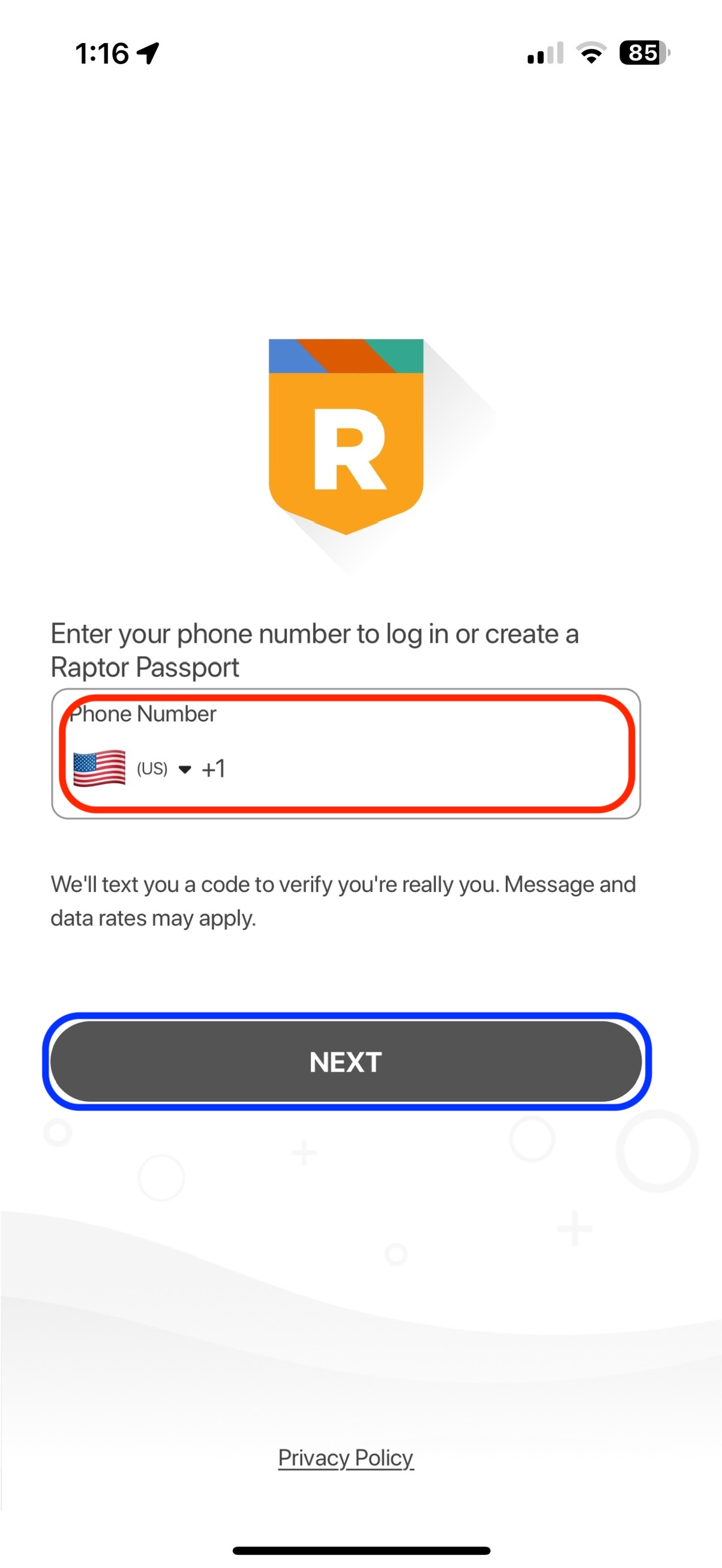
- Open the app and type in you cell number, and then click next
-
- Type in the Code that was just send via txt to your cell number. Then enable Biometrics if you choose to, and then click next.
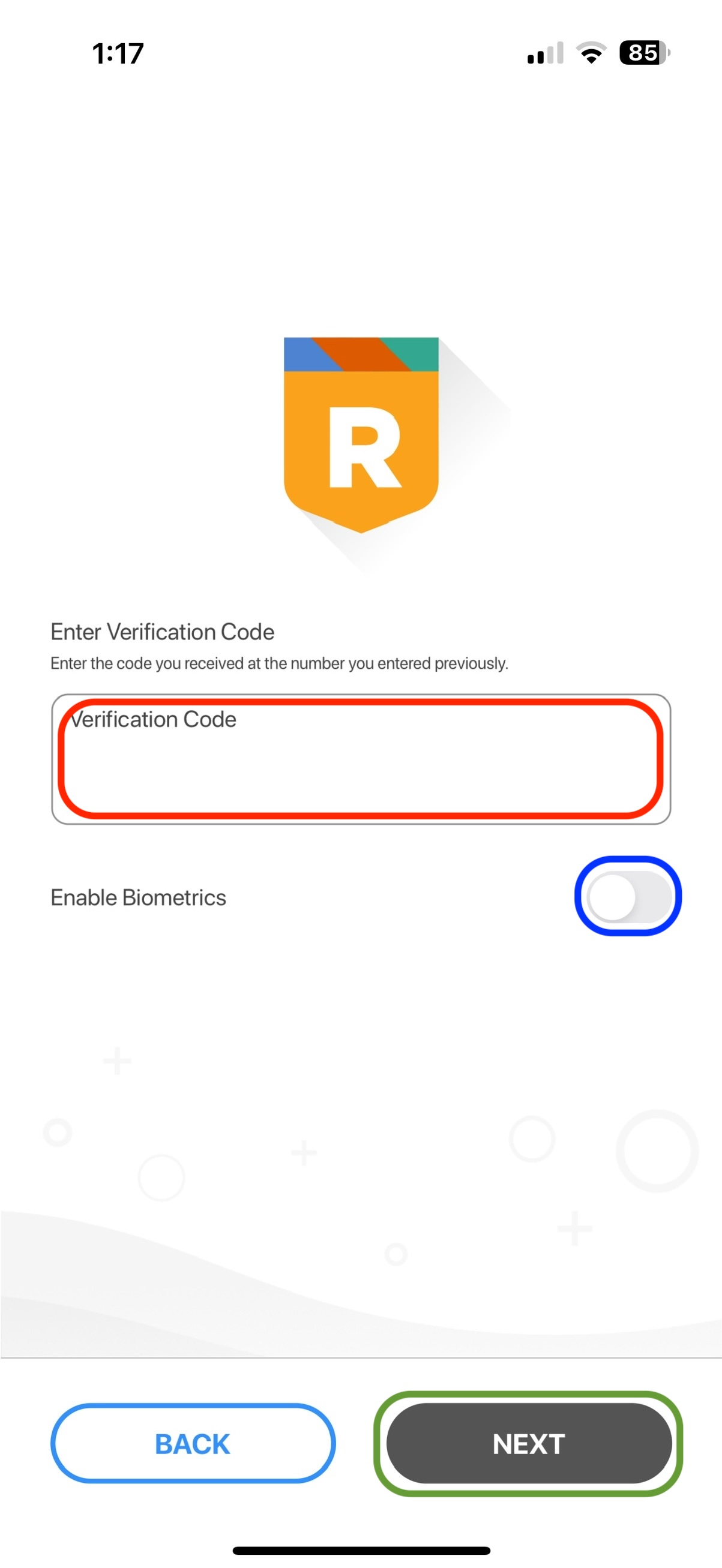
- Type in the Code that was just send via txt to your cell number. Then enable Biometrics if you choose to, and then click next.
-
- Grab you ID and click Scan ID
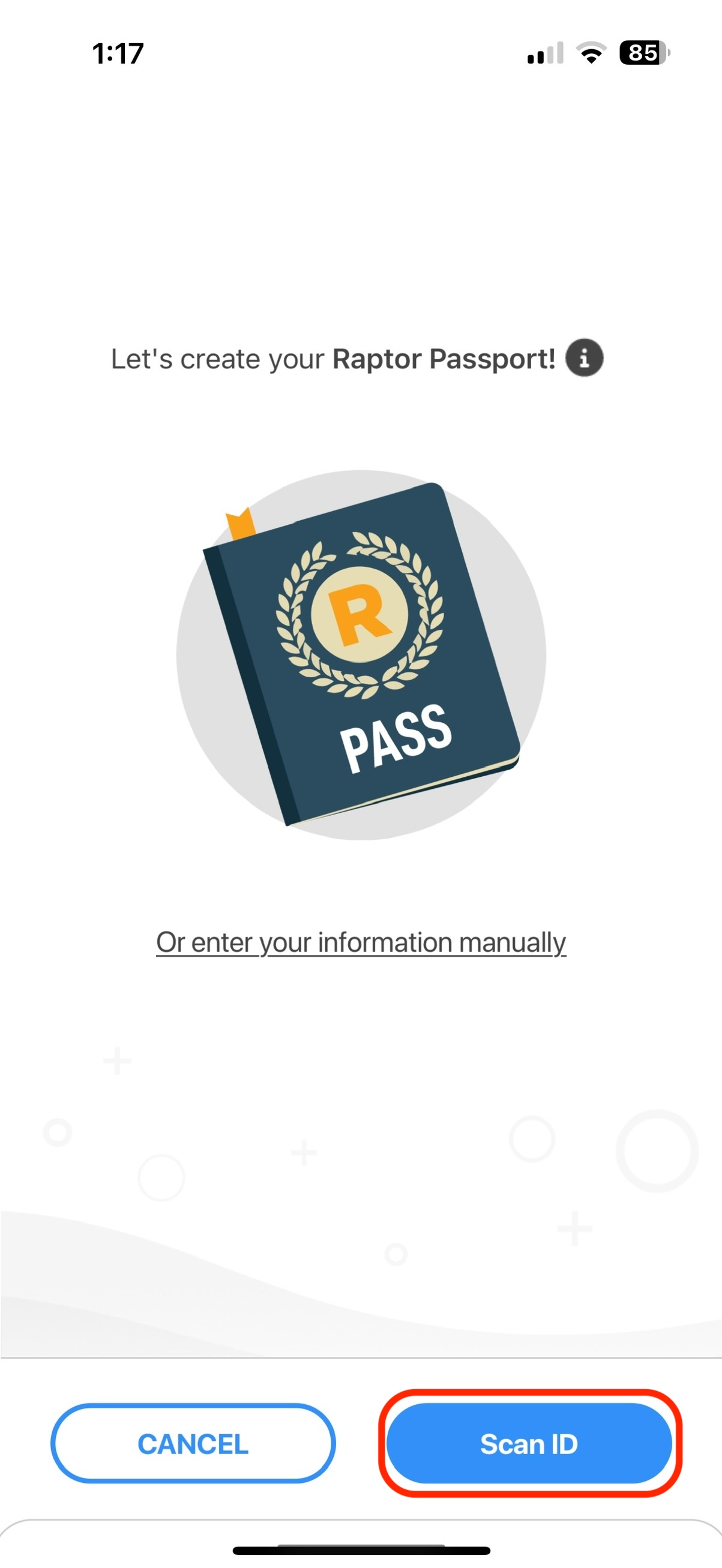
- Grab you ID and click Scan ID
-
- Follow the instructions on the screen.
-
- Take a selfie and follow the instructions on the screen. Then click next.
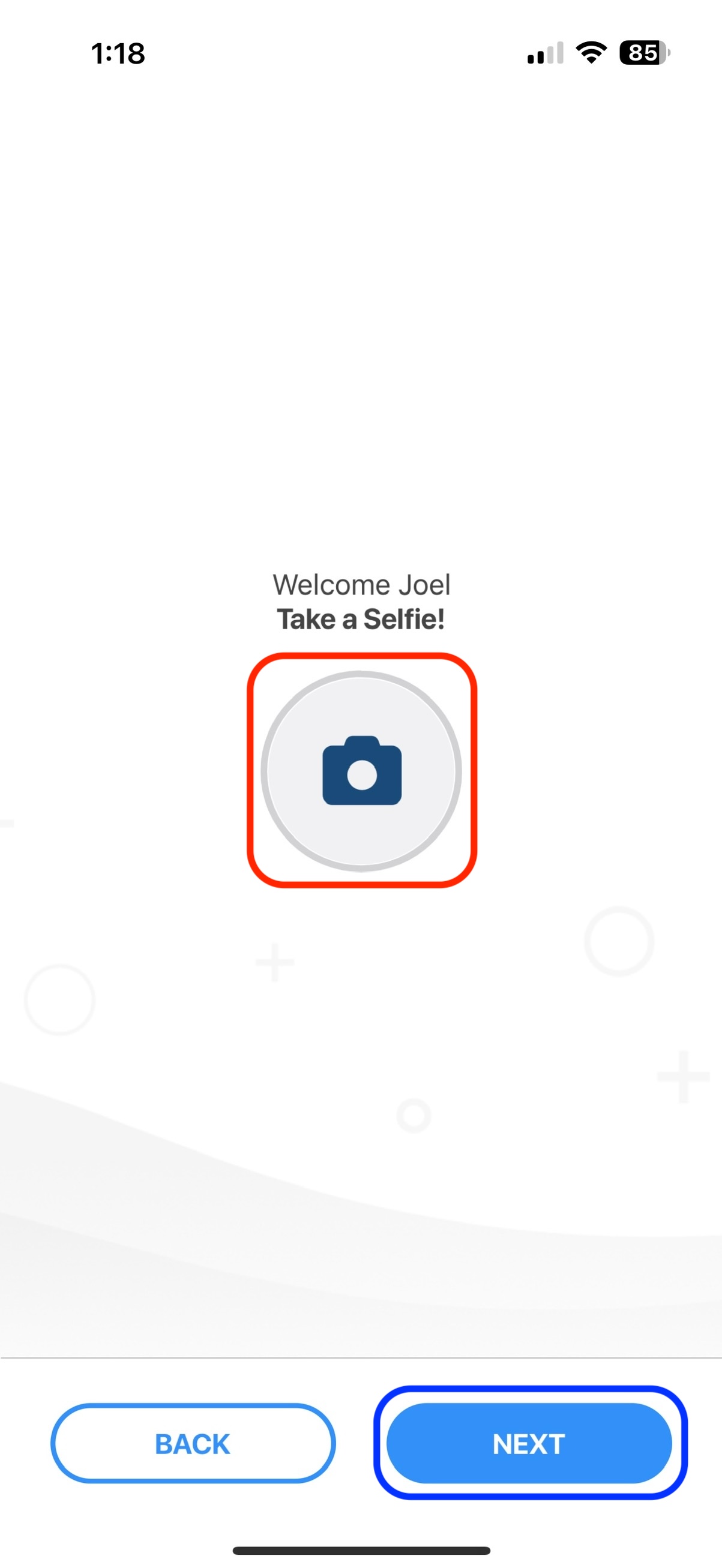
- Take a selfie and follow the instructions on the screen. Then click next.
-
- Next verify you Info. Add you recovery email, and preferred name. Then click Next.
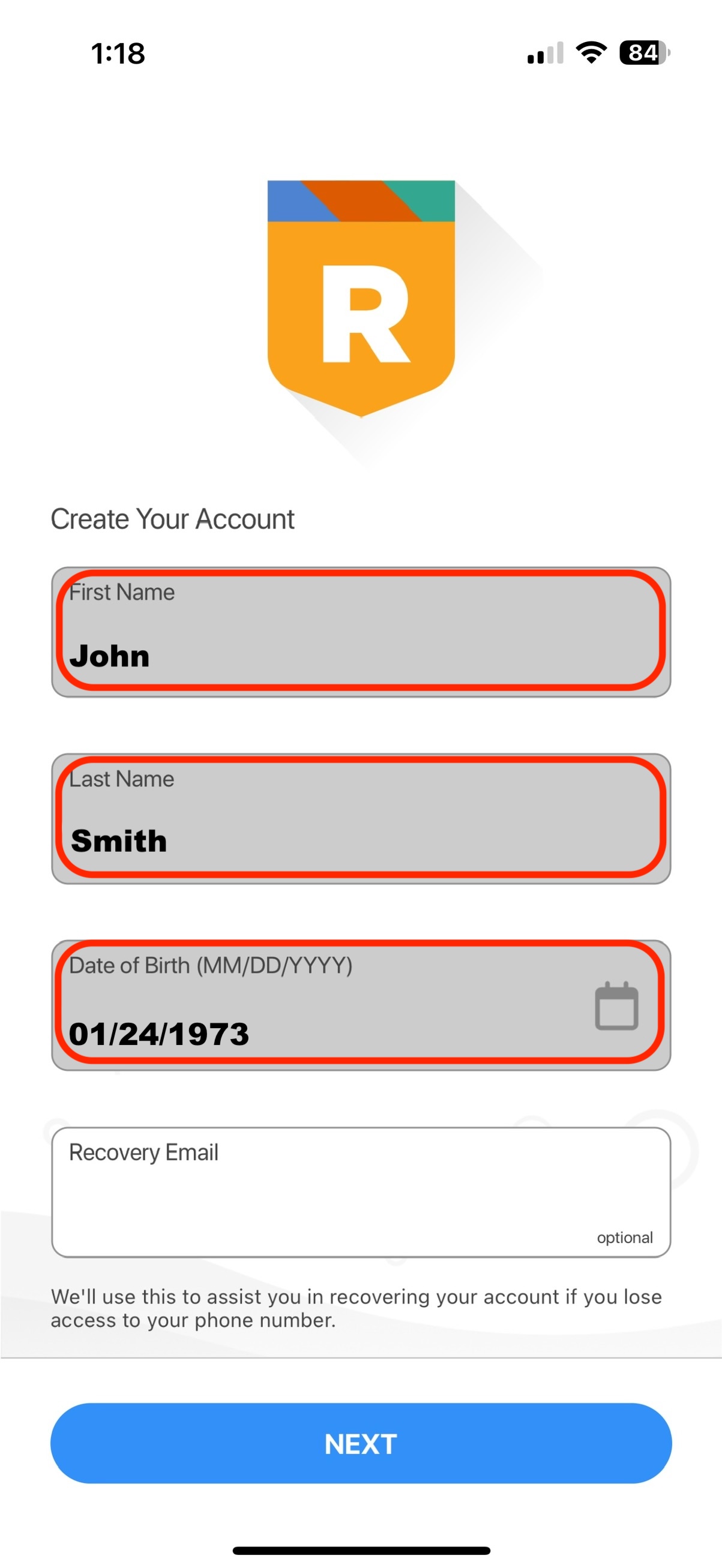
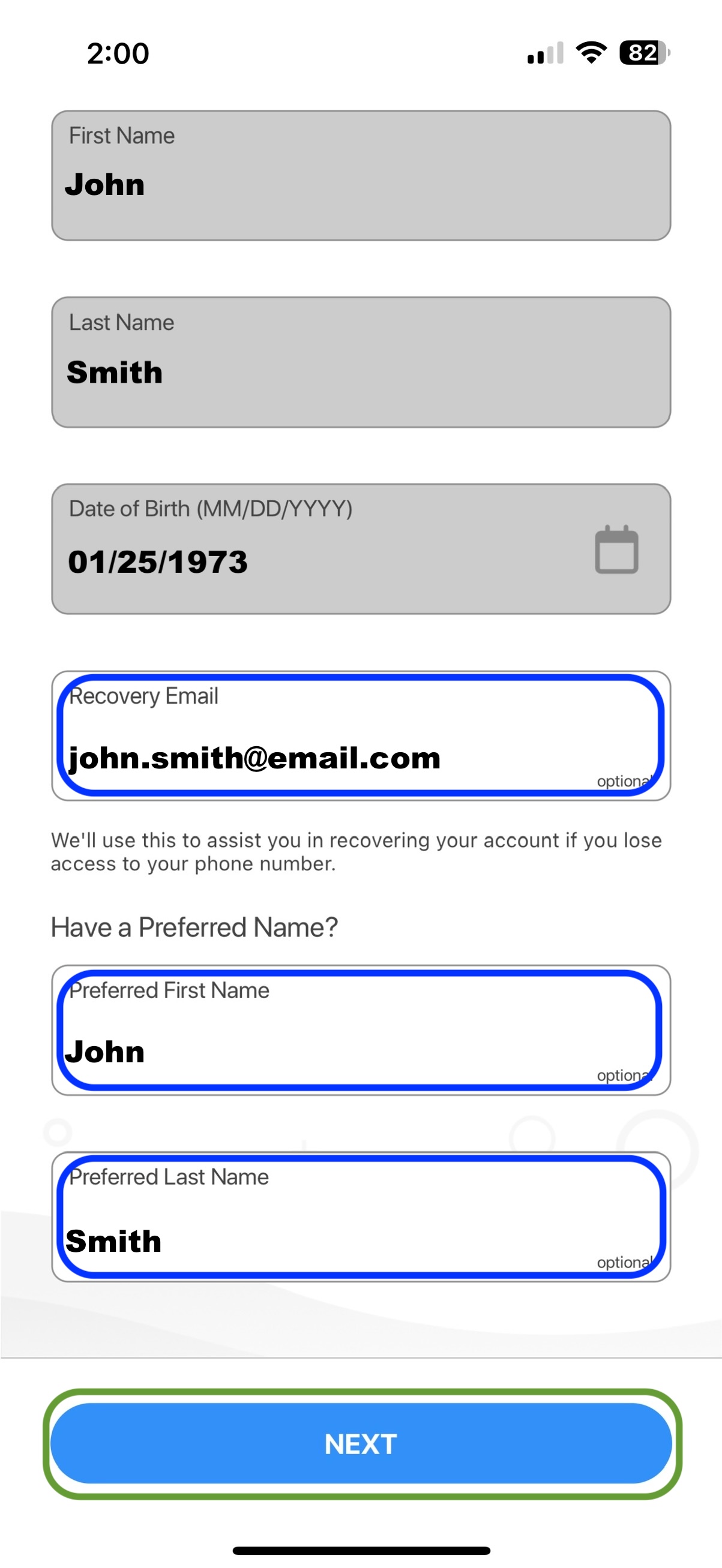
- Next verify you Info. Add you recovery email, and preferred name. Then click Next.
-
- Click the "Click here" to continue without invitation code.
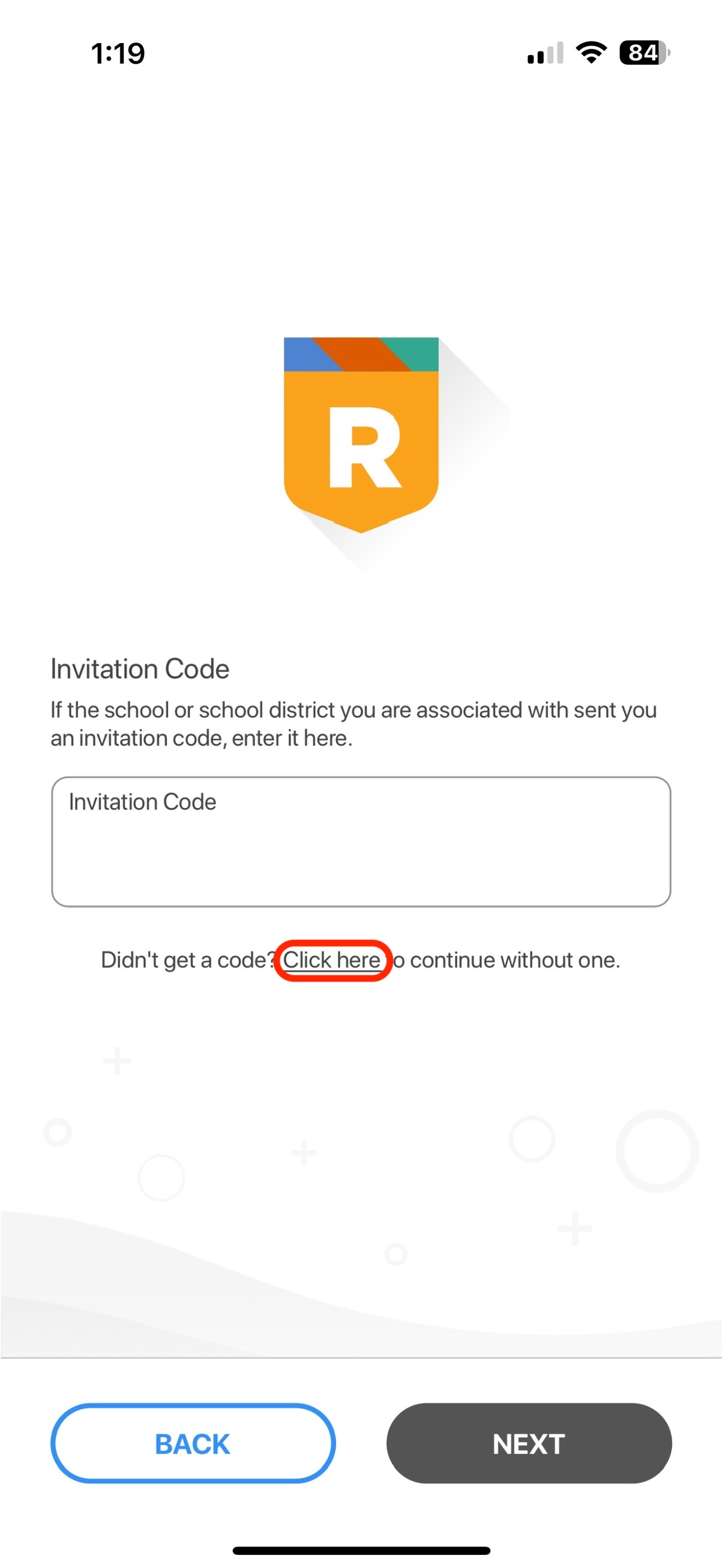
- Click the "Click here" to continue without invitation code.
-
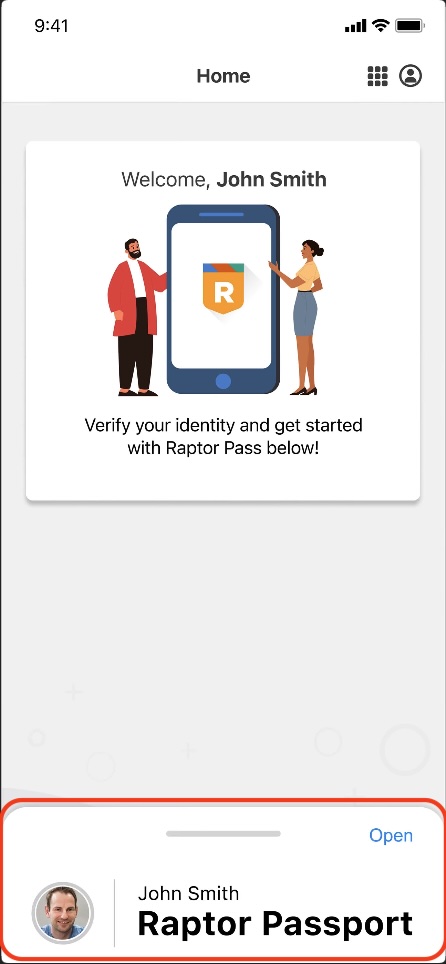
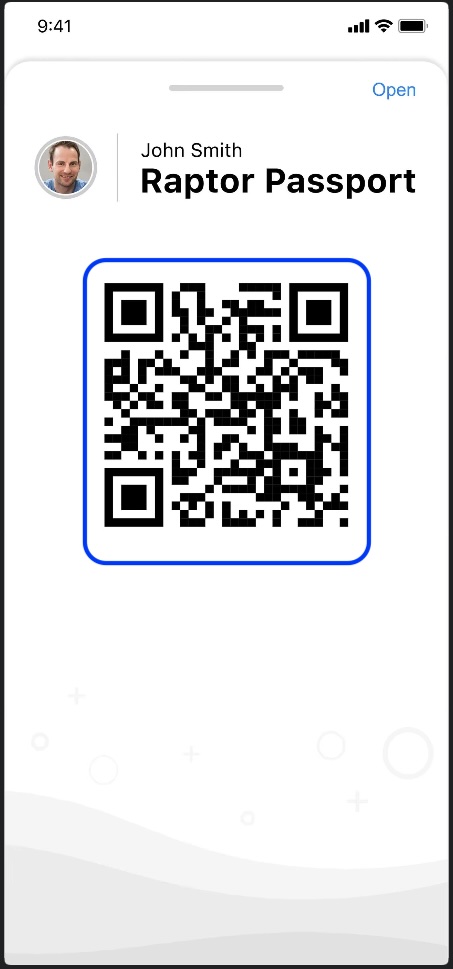
- Now you should be at the home screen. This is what you should see whenever you launch the app from now on. When you arrive at the school launch the app, and swipe up on the passport to show the QR-Code. The click on the Digital Pass option on the iPad in the office. Should be the second option, then scan the QR-Code and make a destination choice. Your badge should print out.